Guide
How to put your shop on Google Maps in Mathura & Vrindavan (step by step)
A step-by-step guide to creating and verifying a Google Business Profile for shops, hotels and clinics in Mathura and Vrindavan, plus the mistakes that stop businesses from appearing.
- By the Braj Digital team
- Updated
- 8 min read
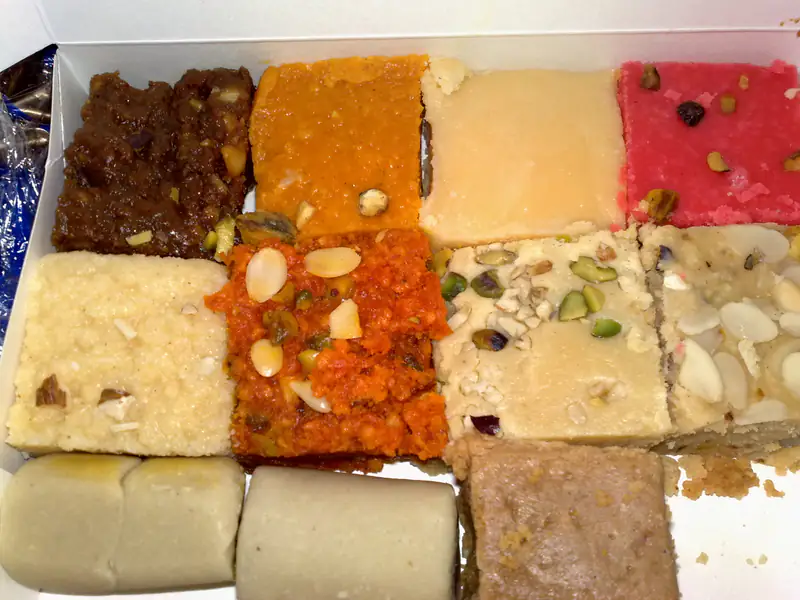
When someone nearby searches "jewellers near me" or "dharamshala in Vrindavan", Google shows a map with a few businesses before any website. Those listings come from a free Google Business Profile. Here's how to set one up properly, plus the mistakes that stop many local businesses from appearing.
Before you start
- A Gmail account you'll keep long-term (not a staff member's personal email)
- Your exact business name, as written on your signboard
- Your address or exact spot on the map, and a phone number that gets answered
- A few good photos: your signboard, the inside of your shop, products or rooms
Step 1: Create your profile
Go to google.com/business and sign in. Enter your business name exactly as it appears on your signboard. Don't add extra words like "best", "cheap" or "near Banke Bihari": that goes against Google's guidelines and can get your profile suspended.
Step 2: Choose the right category
Pick the most specific primary category, such as "Sweet shop", "Jewelry store", "Guest house" or "Beauty salon". You can add secondary categories later. Your category has a big effect on which searches you appear in.
Step 3: Set your location carefully
If customers visit you, add your address and move the pin to your exact entrance. In the lanes of Mathura and Vrindavan, a pin that's even one gali away sends customers the wrong way. If you go to your customers instead, like a taxi service, set a service area and hide your address.
Step 4: Add your contact details
Add a phone number that's answered and your website. When your website shows the same name, address and phone number as your profile, Google can trust both more easily.
Step 5: Verify your business
Google needs to confirm your business is real before your profile shows publicly. Depending on your business, it may ask for a short video, a code by phone or email, or another method. For video verification, record in one continuous take: your signboard, the street or a nearby landmark, the inside of your business, and proof that you manage it, such as opening the shop or your billing counter.
Step 6: Complete every section
- Hours, including special hours for Janmashtami, Holi and other festivals
- Photos: at least 10 real photos of your front, interior, products, rooms or team
- Description: what you offer and who you serve, in natural language
- Services or products, with short descriptions and prices where possible
- Attributes such as parking, wheelchair access or UPI payments
Step 7: Get genuine reviews and reply to them
Ask happy customers to leave a review, for example with a QR code on your counter or a link sent on WhatsApp after their visit. Reply politely to every review, good or bad. Never buy fake reviews: Google removes them and can restrict your profile.
Step 8: Keep your profile active
Post updates for offers, new stock and festival timings, add fresh photos regularly and answer questions from customers. Complete, active profiles give Google more reasons to show you.
Mistakes that stop you from appearing
- Stuffing keywords or place names into the business name
- A pin in the wrong spot, or a home address used for a shop
- Duplicate profiles for the same business
- Different names or phone numbers on your profile, website and signboard
- No photos, no hours and no reviews
Tip: Already have a profile but still don't appear? First check for a duplicate listing, the wrong primary category or missing details. These three issues cause most of the problems we see.
Prefer to have it done properly without the hassle? Our SEO & Google Maps service covers setup, verification support, photos, categories and a review plan, and a professional website makes your profile even stronger.